JPG to Word – Free JPG to Word Converter
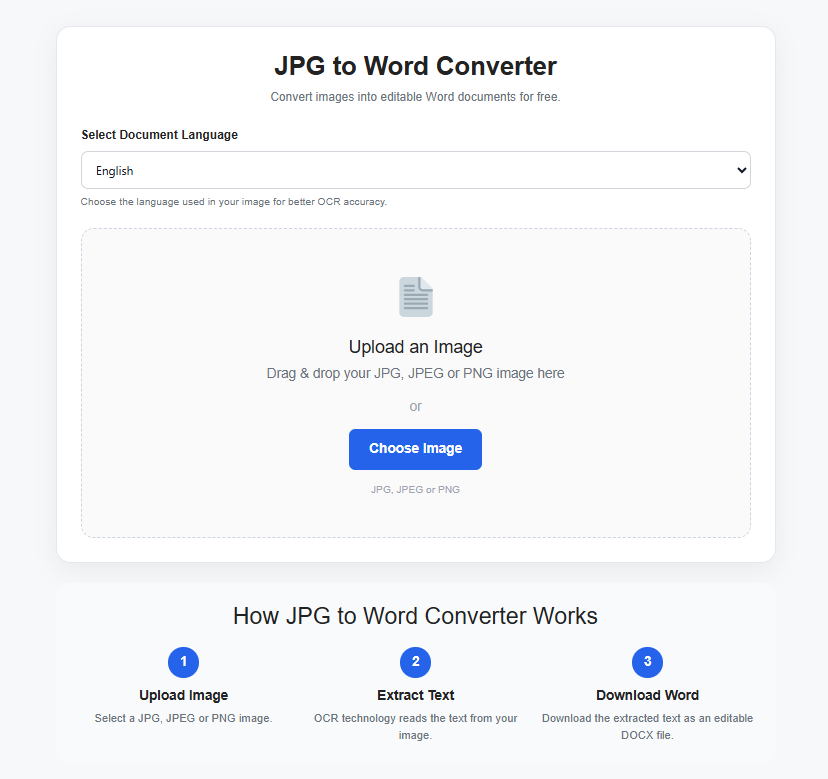
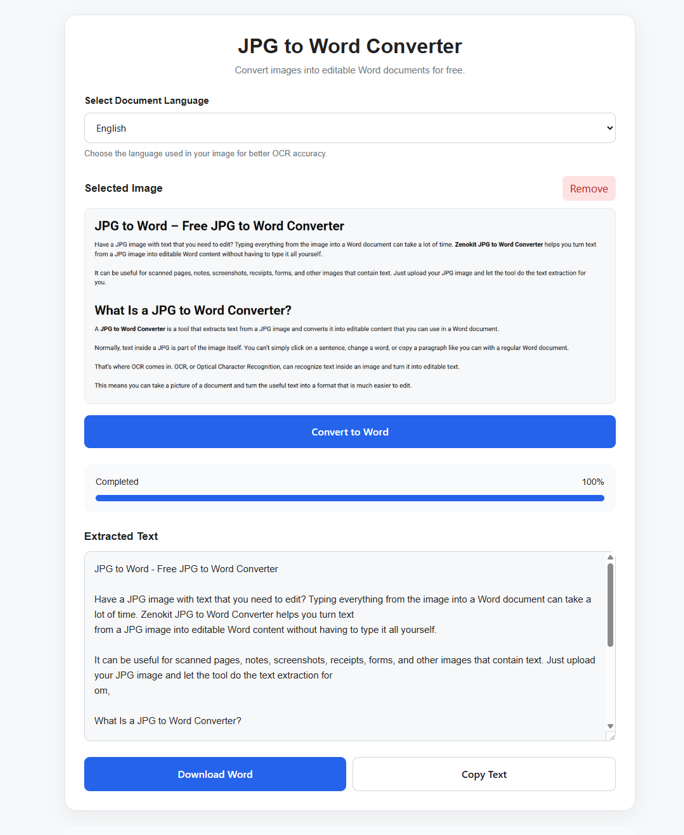
Have a JPG image with text that you need to edit? Typing everything from the image into a Word document can take a lot of time. Zenokit JPG to Word Converter helps you turn text from a JPG image into editable Word content without having to type it all yourself.
It can be useful for scanned pages, notes, screenshots, receipts, forms, and other images that contain text. Just upload your JPG image and let the tool do the text extraction for you.
What Is a JPG to Word Converter?
A JPG to Word Converter is a tool that extracts text from a JPG image and converts it into editable content that you can use in a Word document.
Normally, text inside a JPG is part of the image itself. You can’t simply click on a sentence, change a word, or copy a paragraph like you can with a regular Word document.
That’s where OCR comes in. OCR, or Optical Character Recognition, can recognize text inside an image and turn it into editable text.
This means you can take a picture of a document and turn the useful text into a format that is much easier to edit.
How Does JPG to Word Conversion Work?
The process is pretty straightforward.
You upload a JPG image, and the converter analyzes the text inside the image. OCR technology then identifies the characters and words and extracts them as editable text.
A typical process looks like this:
- Upload your JPG image.
- Let the converter process the image.
- The tool recognizes the text.
- The extracted content is prepared for Word.
- Download or save the resulting Word file.
You don’t need to manually type every line from the image
Why Convert JPG to Word?
There are many situations where having an image as an editable Word document can be more useful than keeping it as a JPG.
Edit the Text
A JPG is an image, so editing the text inside it isn’t straightforward. Converting it to Word gives you editable content that you can change, correct, or update.
Save Time
If you have a full page of text in an image, typing everything manually can be tedious. OCR can handle much of the initial text extraction for you.
Reuse Existing Documents
You may have old documents saved as images or scanned pages that you want to use again. Converting them to Word can make the information easier to work with.
Make Text Easier to Organize
Once the text is available in a Word document, you can add headings, make corrections, rearrange paragraphs, and format the content according to your needs.
Free JPG to Word Converter
Zenokit JPG to Word Converter provides a simple way to extract text from JPG images and turn it into editable Word content.
If you only need to convert an occasional image, you may not want to install expensive document-processing software. An online converter can be a much more convenient option for simple tasks.
Whether you’re working with a scanned page, photograph, screenshot, or document image, Zenokit can help you get the text into an editable format.
JPG to Word for Students
Students often have photos or scans of textbooks, notes, assignments, and printed study materials.
Instead of typing an entire page manually, you can use a JPG to Word Converter to extract the text and then edit or organize it in a Word document.
For example, if you take a clear photo of a printed page, you can extract the text and use it as part of your digital notes.
JPG to Word for Business Documents
Businesses deal with many types of paperwork, including invoices, receipts, forms, reports, and printed documents.
Some of these files may only be available as JPG images. Converting them into editable Word content can make it easier to update information or reuse parts of the document.
It can also be useful when you’re trying to move information from older image-based documents into a digital workflow.
Convert Scanned JPG Documents to Word
A scanned document is often saved as an image rather than a real text document. That’s why you may not be able to select or edit its words.
OCR can recognize the text in the scanned JPG and extract it.
This can be useful for:
- Scanned pages
- Printed forms
- Old documents
- Receipts
- Reports
- Certificates
- Notes
- Business paperwork
The clearer the scan, the better the chance of getting a useful result.
Convert Screenshot to Word
Screenshots can contain important information, but the text inside them usually can’t be edited directly.
For example, you might have a screenshot of a message, instructions, article, or document. Instead of manually copying everything, you can use a JPG to Word tool to extract the readable text.
This is especially handy when you only have an image and don’t have access to the original document.
What Types of JPG Images Can Be Converted?
A JPG to Word tool can be useful for many different image types, such as:
- Photos of documents
- Scanned documents
- Screenshots
- Printed notes
- Receipts
- Forms
- Invoices
- Book pages
- Certificates
- Business documents
The actual result depends on the quality and contents of the image.
How to Get Better Results
OCR works best when the text in your JPG is clear.
Before uploading your image, try to use a file where:
- The text is sharp and readable.
- The image isn’t heavily blurred.
- There is enough lighting.
- The page isn’t tilted too much.
- The text isn’t covered by other objects.
- The image has reasonable resolution.
If the original JPG is difficult for a person to read, the extracted text may also contain mistakes.
Can Handwritten JPG Images Be Converted to Word?
Handwriting is more difficult to recognize than standard printed text.
The results can depend on the handwriting style, image quality, spacing, and clarity of the writing. Clear printed text generally produces more reliable results.
If you’re working with handwritten notes, it’s a good idea to review the converted document carefully.
JPG to Word Online With Zenokit
Using an online converter can save you from installing additional software just to handle a single image.
With Zenokit JPG to Word Converter, you can upload your JPG image and extract the text through your browser.
It’s useful when you have an image-based document and need the content in an editable format for further work.
What Can You Do With the Converted Word Content?
Once your JPG has been converted, you can work with the resulting text like other editable document content.
For example, you can:
- Correct spelling mistakes
- Edit sentences
- Add or remove information
- Copy sections
- Rearrange paragraphs
- Add headings
- Format the document
- Save it for later use
Depending on the original image, some formatting may need to be adjusted after conversion.
Final Thoughts
Having important text trapped inside a JPG doesn’t mean you have to type everything manually.
A JPG to Word Converter can help extract readable text from images and turn it into editable content. It’s useful for scanned documents, screenshots, photos, notes, receipts, forms, and many other everyday files.
Zenokit JPG to Word Converter provides a simple online way to work with text stored inside JPG images. If you need a Free JPG to Word Converter, upload a clear image and let the OCR process handle the initial text extraction.
Frequently Asked Questions
What is a JPG to Word Converter?
A JPG to Word Converter extracts text from a JPG image and turns it into editable content that can be used in a Word document.
Is Zenokit JPG to Word Converter free?
Yes. Zenokit provides a Free JPG to Word Converter for users who need to extract text from JPG images.
Can I convert a scanned JPG to Word?
Yes. A scanned JPG containing readable text can be processed using OCR and converted into editable Word content.
Can I convert a screenshot to Word?
Yes. If the screenshot contains clear text, an OCR-based JPG to Word converter can extract the text for editing.
Can I edit the text after conversion?
Yes. Once the text is converted into editable Word content, you can make changes, correct mistakes, and format it as needed.
Can handwritten JPG images be converted to Word?
Some handwriting may be recognized, but handwritten text is generally more difficult for OCR systems than clear printed text. Results can vary.
Does image quality affect conversion?
Yes. Clear, sharp images usually produce better OCR results. Blurry, dark, tilted, or low-resolution images can lead to recognition errors.
Do I need Microsoft Word to convert a JPG?
You don’t necessarily need Microsoft Word to perform the conversion itself. An online JPG to Word tool can process the image and create editable document content.
Who can use a JPG to Word Converter?
Students, teachers, businesses, freelancers, researchers, office workers, and anyone who needs to extract text from JPG images can use this type of tool.
Is JPG to Word the same as OCR?
JPG to Word conversion commonly uses OCR technology to recognize the text inside the image. OCR performs the text recognition, while the converter uses that recognized text to create editable document content.