
Extract text from images in their original language
Drag & drop your image here or click to browse
JPG, JPEG, PNG, WEBP, BMP0 words · 0 characters
Have you ever needed to copy text from a photo or screenshot but couldn’t select it? Typing everything manually can be frustrating, especially when the image contains a full page of text.
Zenokit Image to Text makes this easier. Upload an image, let the tool read the text, and then copy the result. It can be useful for screenshots, scanned documents, notes, receipts, photos, and other images that contain readable text.
Image to Text is a way of taking text that appears inside an image and turning it into normal, editable text.
For example, imagine you have a screenshot with an important paragraph. Normally, you would have to type that paragraph yourself if you couldn’t copy it. With an Image to Text Converter, you can upload the screenshot and let OCR technology recognize the words for you.
This is particularly helpful when you regularly work with documents or images that contain a lot of text.
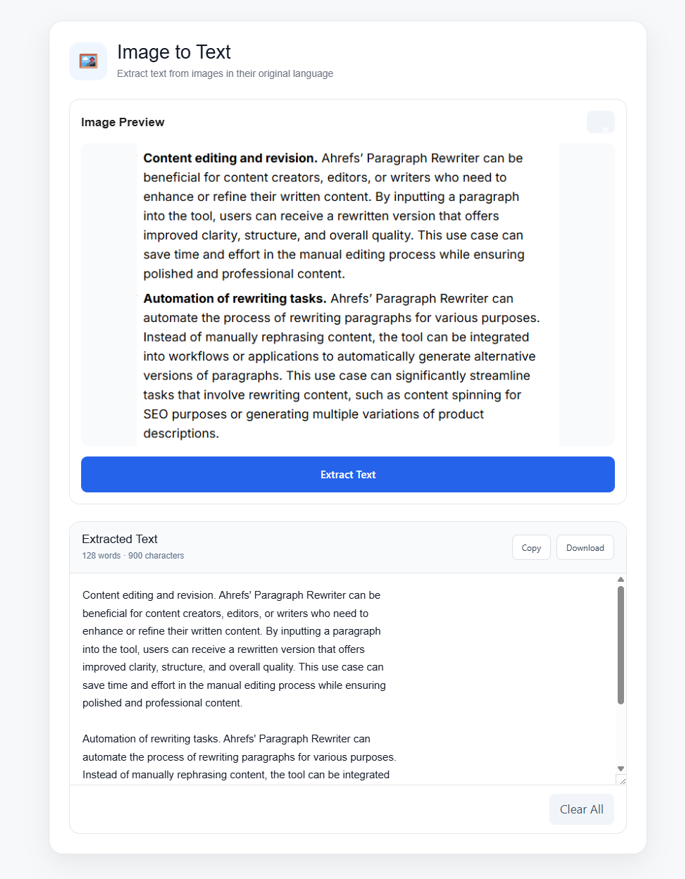
The process is fairly simple.
When you upload an image, the tool looks for characters, words, and lines of text inside it. OCR (Optical Character Recognition) technology then analyzes those characters and turns the recognized content into editable text.
Usually, you only need to:
You don’t have to manually type the entire image.
There are many situations where extracting text from an image can be useful. For example, you might have:
The clearer the text is in the original image, the easier it is for OCR technology to recognize it.
Sometimes you only need the text from an image. Installing a large editing application just for that small task doesn’t make much sense.
Zenokit Image to Text gives you a straightforward way to extract text online.
You can use it when you need to quickly copy information from an image instead of spending time typing it yourself.
You might receive a screenshot in a message, take a photo of a document, or have an old scanned page that you need to work with.
Rather than retyping everything, you can try extracting the text first.
Typing a few words isn’t a big deal. But typing several paragraphs or an entire page is different.
OCR can handle much of that work automatically, leaving you with editable text that you can review and correct if necessary.
If your only goal is to get text out of an image, you don’t necessarily need a full photo-editing application.
An online Image to Text Converter is often much more convenient for this type of task.
Zenokit offers a Free Image to Text Converter for users who want to extract text from images without paying for expensive software.
You can use it for personal projects, study materials, documents, screenshots, and other everyday tasks where text is stored inside an image.
The idea is simple: upload the image, extract the text, and use the result.
Students often take photos of books, classroom notes, printed materials, and study documents.
If you need to use part of that text in your own notes, manually typing it can take a lot of time. An image-to-text tool can help turn the readable content into editable text so you can organize your notes more easily.
For example, you might photograph a page from a textbook and extract the text instead of typing the whole page.
Businesses deal with plenty of paperwork, including receipts, invoices, forms, reports, and scanned documents.
When important information is stored as an image, getting the text into an editable format can make it easier to work with.
An OCR tool can help with these small but repetitive tasks, especially when you’re dealing with multiple documents.
Screenshots are one of the most common reasons people look for an Image to Text Converter.
Maybe someone sent you a screenshot containing an address, a paragraph, instructions, or another piece of information. If the text cannot be selected, you can upload the screenshot and extract the readable text instead of typing it manually.
A scanned document may look like a normal document on your screen, but technically it can just be an image.
That means you may not be able to select or copy the words.
OCR can analyze the scanned page and recognize the characters, giving you a text version that you can edit or copy.
This can be helpful with:
Yes, as long as the photo contains clear and readable text.
For example, you can take a picture of a printed document and use an Image to Text Converter to extract the words.
However, results can vary. A blurry photo, poor lighting, unusual fonts, or text that is partially hidden can make recognition more difficult.
You don’t need a perfect image, but a clear image usually gives you a better result.
Before uploading an image, try to make sure:
If the extracted text contains mistakes, checking the original image is a good idea.
Handwritten text can be more difficult for OCR systems than clearly printed text.
The result depends heavily on the handwriting, image quality, language, spacing, and how clearly each character is written.
For the best results, use a clear image with easy-to-read text whenever possible.
One of the main advantages of an online tool is convenience. You don’t need to prepare a complicated setup just to extract some text.
With Zenokit Image to Text, you can upload an image from your device and process it through your browser.
It’s useful when you’re working with screenshots, photos, scanned pages, or other images and simply want the text inside them.
Once the text has been recognized, you can review it and use it for your own needs.
You might:
It’s still a good idea to check the extracted text, especially when the original image is blurry or contains unusual formatting.
There are plenty of times when useful information is trapped inside an image. Maybe it’s a screenshot, a scanned page, a receipt, or a photo of a document. Typing all of that information by hand isn’t always worth the time.
Zenokit Image to Text provides a simple way to extract readable text from images using OCR technology.
If you need a Free Image to Text Converter for everyday tasks, upload your image and see how much of the text can be extracted automatically.
An Image to Text Converter extracts readable text from an image and turns it into editable digital text. Most tools use OCR technology to recognize the characters.
Yes. Zenokit provides a Free Image to Text Converter for extracting text from supported images.
Yes. If the screenshot contains clear, readable text, you can use an Image to Text tool to extract it.
Yes. OCR can recognize text from many scanned documents and convert the recognized content into editable text.
Yes. Photos containing clear printed text can be processed. Better image quality generally leads to better results.
OCR stands for Optical Character Recognition. It is technology that allows software to recognize characters and words contained in images.
No. OCR isn’t perfect. Accuracy can be affected by blurry images, poor lighting, unusual fonts, handwriting, low resolution, and other factors. It’s always a good idea to check the extracted text.
Yes. An online Image to Text Converter lets you extract text through your web browser without needing to install traditional desktop software.
Anyone can use it. Students, professionals, businesses, researchers, freelancers, content creators, and everyday users may find it useful when working with text inside images.
Yes. Clear, sharp, high-quality images generally make it easier for OCR technology to recognize the text accurately.