
Converting images into PDF files is useful for many everyday tasks. You may need to turn photos into a document, combine scanned pages into one file, save screenshots as a PDF, or create a printable document from several images. Instead of installing complicated desktop software, you can use an Image to PDF Converter directly from your web browser.
Zenokit Image to PDF Converter is designed to make the conversion process simple and convenient. You can add supported image files, arrange them in the order you want, and create a PDF document from your images. The tool is suitable for students, professionals, businesses, freelancers, and anyone who regularly works with digital documents.
Whether you want to convert a single image or combine multiple images into one PDF, an online image-to-PDF tool can save time and reduce the need for additional software. You can use it from a computer, tablet, or compatible mobile device with a modern web browser.
The tool can be useful for converting JPG to PDF, JPEG to PDF, PNG to PDF, and other supported image formats. It is particularly helpful when you need a quick way to turn image-based information into a document that is easier to share, store, print, or organize.
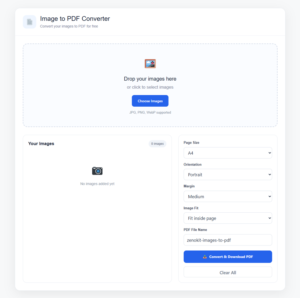
An Image to PDF Converter is an online or software-based tool that changes image files into PDF documents. Instead of keeping several separate image files, you can combine them into a single PDF file.
For example, imagine you have five scanned pages saved as JPG images. Sending five separate files to another person may be inconvenient. With an image-to-PDF converter, you can combine those pages into one PDF document. The recipient can then open and read the entire document as a single file.
Image-to-PDF conversion can also be useful for photos, receipts, certificates, forms, handwritten notes, screenshots, assignments, and scanned paperwork.
The basic process is straightforward:
Image files → Upload → Arrange → Convert → PDF → Download
This makes the format useful for both personal and professional document workflows.
Need to resize an image before converting it? Try our Image Resizer.
Images are excellent for capturing visual information, but PDF files are often more convenient when you need to organize and share multiple pages.
Here are some common reasons to convert images to PDF:
If you have several images representing different pages of a document, converting them into one PDF makes the files easier to manage.
Instead of sending:
you can create one document containing all four pages.
PDF is a widely used document format. A single PDF can be easier to share through email, messaging platforms, cloud storage, or other communication tools than a collection of separate image files.
You may have important information stored as photographs. For example, you could photograph a receipt, handwritten note, printed form, or document and then convert the image into a PDF for easier storage.
PDF files are commonly used for printing. Combining images into a PDF can help organize pages before sending them to a printer.
When several images belong to the same project, assignment, report, or document, combining them into one PDF can make organization easier.
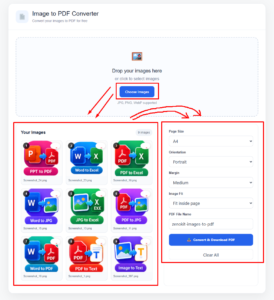
Using Zenokit Image to PDF Converter is designed to be straightforward, even if you have little technical experience.
Step 1: Select Your Images
Start by selecting the image files you want to convert. Depending on the supported formats, you can choose JPG, JPEG, PNG, WebP, or other compatible image files.
If you are creating a multi-page PDF, select all the images you want to include.
Step 2: Upload the Images
Add the selected images to the converter. After uploading, check that the files have been added correctly.
If you accidentally select an unwanted image, remove it before starting the conversion.
Step 3: Arrange the Images
The order of your images matters when creating a multi-page PDF. Arrange the files according to the order you want them to appear.
For example:
Page 1 → Page 2 → Page 3 → Page 4
This is especially useful when converting scanned documents or photographed pages.
Step 4: Start the Conversion
Once everything looks correct, click the Convert to PDF button. The converter will process the selected images and create a PDF document.
Step 5: Download the PDF
After the conversion is finished, download the generated PDF to your device.
You can then open the PDF, save it for later, print it, or share it with others.
If you need to extract text from an image, you can also try our Image to Text Converter.
Zenokit is designed around a simple conversion workflow so that users can create PDF documents without dealing with complicated settings.
Convert Multiple Images
You can combine multiple supported images into one PDF. This is helpful when working with scanned pages, photos, receipts, or assignments.
JPG to PDF Conversion
JPG and JPEG are among the most commonly used image formats. The tool can be useful when you need to convert JPG to PDF for sharing, printing, or document storage.
PNG to PDF Conversion
PNG images are commonly used for screenshots, graphics, illustrations, and other digital images. A compatible PNG file can be converted into a PDF when you need a document format.
Simple Interface
A straightforward interface makes the conversion process easier for beginners. You should not need advanced technical knowledge to create a PDF from your images.
Browser-Based Conversion
An online converter allows you to work from your browser rather than installing dedicated PDF conversion software.
Multiple Device Support
You can access an online image-to-PDF tool from compatible desktop computers, laptops, tablets, and smartphones.
Image Ordering
When creating a PDF from multiple images, arranging the images before conversion helps you create the pages in the correct sequence.
The exact formats available can depend on the converter and browser being used. Commonly supported image formats may include:
JPG and JPEG
JPG and JPEG are widely used for photographs and general-purpose images. They are commonly found on smartphones, digital cameras, and computers.
PNG
PNG is often used for screenshots, graphics, logos, illustrations, and images where transparency or lossless quality is important.
WebP
WebP is a modern image format commonly used on websites because it can provide efficient image compression.
GIF
GIF files can contain simple animations, although PDF conversion behavior can depend on the converter and the specific file.
BMP
BMP is an older image format that stores bitmap image data and may be supported by compatible conversion tools.
An image-to-PDF converter can be useful in many situations.
Students
Students can use an image-to-PDF tool to combine photographs of handwritten notes, assignments, worksheets, or textbook pages into one PDF.
For example, if an assignment contains several handwritten pages, you can photograph each page and combine the images into one PDF before submitting it.
Teachers
Teachers can organize photographed worksheets, classroom materials, notes, and other image-based resources into PDF documents.
Freelancers
Freelancers may need to organize receipts, project documents, screenshots, or visual references. Combining related images into PDF files can make document management easier.
Small Businesses
Businesses often deal with receipts, forms, invoices, product information, and scanned documents. Turning multiple images into a PDF can simplify sharing and archiving.
Office Workers
Employees can use image-to-PDF conversion for scanned paperwork, photographed documents, meeting notes, and other image-based information.
Personal Use
For personal tasks, you can convert photos, receipts, certificates, notes, or other images into PDF files for easier storage and sharing.
Both images and PDFs have their own advantages. The better format depends on what you need to do.
If you only need to view or share one photograph, keeping it as an image may be sufficient.
However, if you have several related images, a PDF can be more convenient because the files can be combined into a single document.
For example:
Separate images:
10 individual files that need to be uploaded or shared.
Single PDF:
One document containing all 10 pages.
This can make document organization simpler.
Converting an image to PDF does not automatically improve the original image quality. The final result depends on the source image and how the converter processes it.
If the original image is blurry or very low resolution, converting it to PDF will not make the underlying details sharper.
For better results, start with a clear and sufficiently high-resolution image. When photographing documents, try to keep the camera steady and ensure that the entire page is visible.
Use Clear Images
For documents and text, use images that are sharp enough to read. Blurry photographs can make the resulting PDF difficult to use.
Keep Pages Straight
When photographing documents, try to capture the page straight from above. This can make the final PDF easier to read.
Use Good Lighting
Good lighting helps prevent shadows and dark areas from covering important information.
Check the Image Order
If you are combining multiple images, make sure they are arranged correctly before conversion.
Avoid Unnecessary Images
Only include the images you actually need. Removing unnecessary pages can keep the final PDF more organized.
Online image-to-PDF tools can provide a convenient alternative to paid desktop PDF software. Zenokit offers an online Image to PDF Converter intended to make basic image-to-PDF conversion accessible through a web browser.
The availability of specific features, file limits, or future service options may change over time, so check the converter itself for the current functionality.
Yes, image-to-PDF conversion can be useful on smartphones and tablets. Modern mobile devices already make it easy to take photographs or access images from your gallery.
For example, you can photograph several pages of a document, upload those images to the converter, arrange them, and create a PDF.
A mobile-friendly converter is especially useful when you do not have access to a desktop computer or traditional PDF software.
The easiest method is generally to use an online Image to PDF Converter. Upload your image, arrange it if necessary, start the conversion, and download the resulting PDF.
Yes. A compatible JPG or JPEG image can be converted into a PDF using an online image-to-PDF converter.
Yes. If PNG is supported by the converter, you can upload a PNG image and convert it into a PDF document.
Yes. One of the most useful functions of an image-to-PDF converter is combining multiple images into a single PDF.
Yes. Browser-based converters allow you to perform the conversion online without installing traditional desktop PDF software.
You can use the converter through a compatible mobile web browser. The exact experience may depend on your device, browser, and the files you are uploading.
Common formats include JPG, JPEG, PNG, WebP, GIF, and BMP, although supported formats can vary between tools and browsers.
Yes. By adding multiple images and arranging them in the correct order, you can create a PDF containing multiple pages.
The handling of uploaded files depends on the converter’s implementation and privacy policy. Users should review the applicable privacy information before uploading sensitive files.
Yes. If your scanned documents are saved as supported image files, you can combine those images into a PDF.
Yes. Photos saved in supported image formats can be converted into PDF documents.
Usually, converting an image into a PDF does not turn the text inside the image into editable text. The PDF may contain the original image as a page. If you need editable text, you generally need an OCR or image-to-text tool.
It depends on the situation. JPG can be convenient for individual images, while PDF is often more suitable for documents containing multiple pages or images.
Zenokit focuses on providing simple online tools that help users complete common digital tasks without unnecessary complexity. The Image to PDF Converter is designed for users who want a quick way to turn images into organized PDF documents.
Instead of learning complicated PDF software, you can use a browser-based workflow:
Upload → Arrange → Convert → Download
This straightforward process can be useful for students, professionals, businesses, freelancers, and everyday users.
An Image to PDF Converter is a practical solution when you need to turn one or more images into a PDF document. Whether you are converting JPG to PDF, PNG to PDF, scanned pages to PDF, or photographs to PDF, an online converter can make the process faster and easier.
Zenokit Image to PDF Converter provides a simple browser-based approach for creating PDFs from supported image files. You can upload your images, organize their order, convert them into a PDF, and download the finished document.
If you frequently work with images and need a convenient way to create shareable documents, an online Image to PDF Converter can be a useful addition to your everyday digital workflow.